
Do you feel dull aches in your neck after long days at your desk? Many people struggle with these pains because of poor desk setup and improper habits. These common issues often stem from improper ergonomics which affect your daily comfort.
You might wonder, How High Should a Monitor Be? Finding the right height for your digital screen is vital for your health. It affects your spine and focus more than you think, so this guide explores scientific tips.
We provide easy steps to fix your display height. Aligning your screen leads to more productive days.
We will show you ways to reach the perfect eye level to stop strain today. You do not need expensive gear to create cozy spaces to work.
Small changes can make you feel better immediately during your daily routine. Your body will thank you for these immediate improvements.
We will help you master settings for dual display units. Get ready to transform your office with simple knowledge and better habits starting right now to improve health.
Why Monitor Height Is Critical for Your Health and Comfort
Your desk setup does more than hold your computer; it actually dictates how your muscles feel by the end of the shift. Remote employees now spend an average of 13 hours every day looking at digital screens. Because of this, choosing the right monitor height is a critical health decision rather than a simple desk choice.
Your head weighs about 5kg, which is roughly the same as a professional bowling ball. When you tilt your neck forward to see a low screen, your muscles work up to five times harder to support that weight. This creates a biomechanical chain reaction throughout your entire body.
Poor posture leads to intense shoulder tension that eventually affects your spine. Many workers develop unconscious habits like slouching or rounding their shoulders to compensate for a screen that is too low. Over a long shift, these small adjustments lead to lasting neck stiffness.
Beyond physical pain, incorrect placement leads to significant eye strain. When a screen is too high or low, your eyes must constantly readjust their focus. This repetitive movement causes irritation and may lead to long-term vision issues if left uncorrected.
| Position Type | Muscle Effort | Spinal Impact |
|---|---|---|
| Neutral Alignment | Minimal / Natural | Balanced Support |
| Forward Tilt | 5x Increase | High Cervical Stress |
| Excessive Height | Upper Trapezius Load | Shoulder Tension |
Properly adjusting your monitor height helps you maintain a natural posture throughout the workday. While discomfort often develops slowly over time, it can quickly become a chronic problem that hurts your productivity. Creating a workspace that supports your mechanics reduces unnecessary strain and keeps your energy levels high.
- Protect your spine by keeping your head in a neutral position.
- Reduce headaches by aligning the screen with your natural eye line.
- Boost focus by eliminating the physical fatigue caused by slouching.
How High Should a Monitor Be? The Essential Rule Explained
Finding the right height for your screen doesn’t have to be a guessing game. Most people place their displays far too low, which often leads to poor posture. By following a few standard ergonomic rules, you can protect your neck from daily strain.
Your comfort depends on the specific position of your digital display. Let’s explore the basic principles of healthy viewing habits for your home office or workspace.
The Top-of-Screen at Eye Level Rule
When you sit up straight, the top screen should be at or slightly eye level. This specific position ensures your eyes are looking slightly downward when looking at the center of the monitor.
This setup prevents you from tilting your head back, which often causes headaches. Keeping the level of the top screen correct is the first step toward long-term comfort. A slightly eye level height helps you maintain a productive and healthy workspace.
Optimal Viewing Distance: The Arm’s Length Test
The distance between you and your monitor matters just as much as the height. A simple way to check this is to use your arm for a quick measurement.
Reach out toward the display; your middle finger should just barely touch it. This arm length usually measures between 20 and 30 inches from your face. Maintaining this arm length distance keeps the text clear without straining your vision.
Understanding the Ideal Downward Gaze Angle
The most natural angle for your eyes is about 15 to 20 degrees below the horizontal line. This slightly eye height adjustment helps the monitor feel more comfortable during long shifts. It requires the least amount of muscular effort to maintain this level.
Scientifically, a downward angle reduces the surface area of the screen user’s eye exposed to air. This helps prevent the slightly eye irritation often caused by tear evaporation and dryness. This alignment also supports a neutral neck, keeping your spine in its natural curve while viewing content.
| Adjustment Type | Optimal Rule | Health Benefit |
|---|---|---|
| Vertical Height | Top of display at eye level | Prevents neck extension and strain |
| Viewing Gap | One full arm length away | Reduces digital eye fatigue |
| Gaze Direction | 15-20 degree downward tilt | Minimizes dry eye symptoms |
| Neck Alignment | Neutral cervical spine curve | Avoids tech neck and headaches |
Step-by-Step Guide to Setting Your Perfect Monitor Height
Finding the sweet spot for your display is easier than you might think. By following a structured approach, you can eliminate neck pain and boost focus. Let’s walk through how to align your monitor for maximum comfort at your desk.
Step 1: Sit in Your Natural Working Posture
Start by settling into your office chair in a way that feels sustainable. Ensure your back is supported and your feet remain flat on the floor. Do not sit too stiffly or force a pose; simply find your usual, relaxed stance at your desk.
Step 2: Locate Your Eye Level Position
Look straight ahead while sitting naturally in your monitor setup. Imagine a perfectly horizontal line coming from your eyes toward the wall. This specific spot is your starting point for a healthy eye level.
You should aim for the most natural gaze possible to avoid neck strain. If you have to tilt your head up or down, your eye level is likely mismatched with your gear.
Step 3: Position the Top of Your Screen
Now, adjust the height so the top of the screen is at or slightly below that imaginary line. This position allows you to view the middle of the display with a slight downward gaze.
Most people find this height much more comfortable for long hours of work. If your stand is too short, use a riser to lift the screen to the correct point.
Step 4: Set the Correct Viewing Distance
Extend your arm toward the monitor to check the spacing. The screen should be roughly at your fingertips when you sit back in your position.
Maintaining this distance helps prevent eye strain while keeping text clear and easy to read. If the display is too far, you might lean forward, which ruins your posture.
Step 5: Adjust the Screen Tilt Angle
Tilt the display back about 10 to 20 degrees to improve visibility. This angle helps reduce glare from overhead lights that can cause headaches.
A slight tilt also ensures that the distance from your eyes to the top and bottom of the display is similar. Finding the right angle makes a huge difference in clarity.
Step 6: Test and Fine-Tune Your Setup
Spend about 30 to 60 minutes working with this new setup to see how it feels. If you notice any neck tension or eye strain, make small adjustments of about half an inch.
Check your posture periodically to ensure your shoulders remain relaxed. It might feel strange at first if you used a poor level for years, so give the height change a few days. Small tweaks to the tilt or monitor location will eventually lead to total comfort.
| Adjustment Type | Recommended Target | Common Sign of Error |
|---|---|---|
| Screen Position | Top at eye level | Chin tilting up |
| Arm Distance | 20 to 30 inches | Squinting at text |
| Tilt Range | 10-20 degrees back | Reflections on glass |
Common Monitor Placement Mistakes and Quick Fixes
Even with the best intentions, it is easy to fall into bad habits when setting up your desk. Many users unknowingly sabotage their workspace ergonomics by making simple mistakes with their monitor placement. Identifying these issues early can prevent lasting pain and daily discomfort.
Monitor Too Low: The Tech Neck Problem
Laptop screens usually sit too low when you use them without a stand. When your screen is at a low level, you naturally tilt your head forward to see. This position leads to “tech neck,” where your neck supports too much weight.
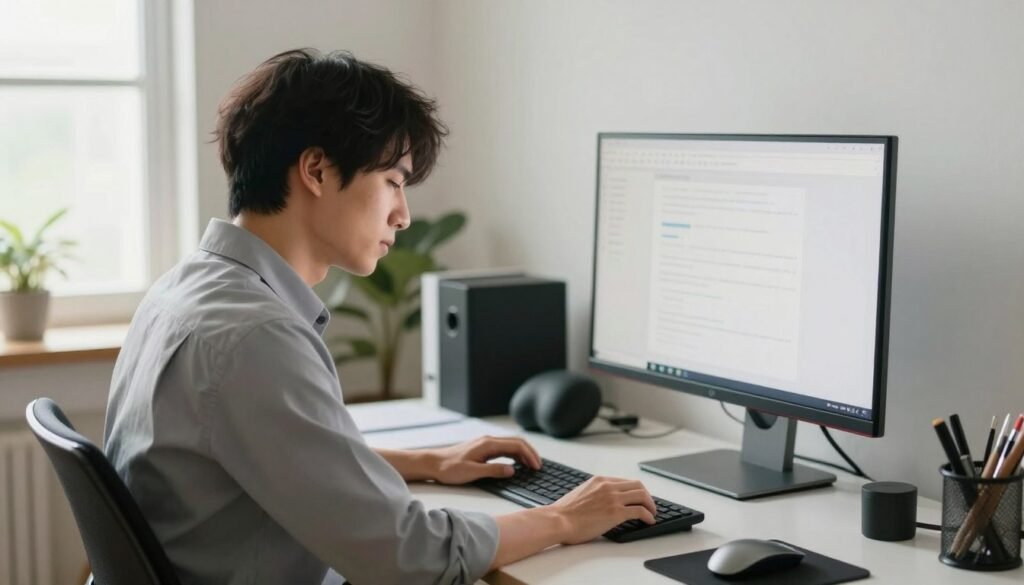
Monitor Too High: Neck Strain Issues
A display that sits too high forces you to tilt your skull backward. This movement creates a different kind of tension that radiates into your neck shoulders. Over time, this awkward angle makes it hard to focus on your tasks.
Your neck needs a neutral setup to avoid constant neck strain. Always check if you are looking up at the address bar, as this is a sign of a high screen. Adjust your monitor today to keep your chin level.
Monitor Too Close or Too Far Away
Distance errors often happen alongside height problems and can ruin a good setup. Sitting too far away leads to squinting and leaning, while sitting too close causes eye fatigue. Both errors often cause you to lose your perfect vertical posture.
- Move the monitor back to a full arm’s length to reduce strain.
- If you cannot read the text, increase the font size instead of leaning in.
- Ensure your desk is deep enough so you aren’t pushed too far away from the glass.
- Keep your neck shoulders relaxed by checking that the desk depth allows for a natural arm reach.
Proper distance works together with the right height for the best results. You must get both factors right to feel the full ergonomic benefit during your workday.
Best Ergonomic Tools for Adjusting Monitor Height
Achieving an ergonomic workspace is much simpler when you have the right accessories to support your posture. These tools help you maintain a healthy setup at your desk without needing a brand-new monitor.
Monitor Arms with Adjustable Height
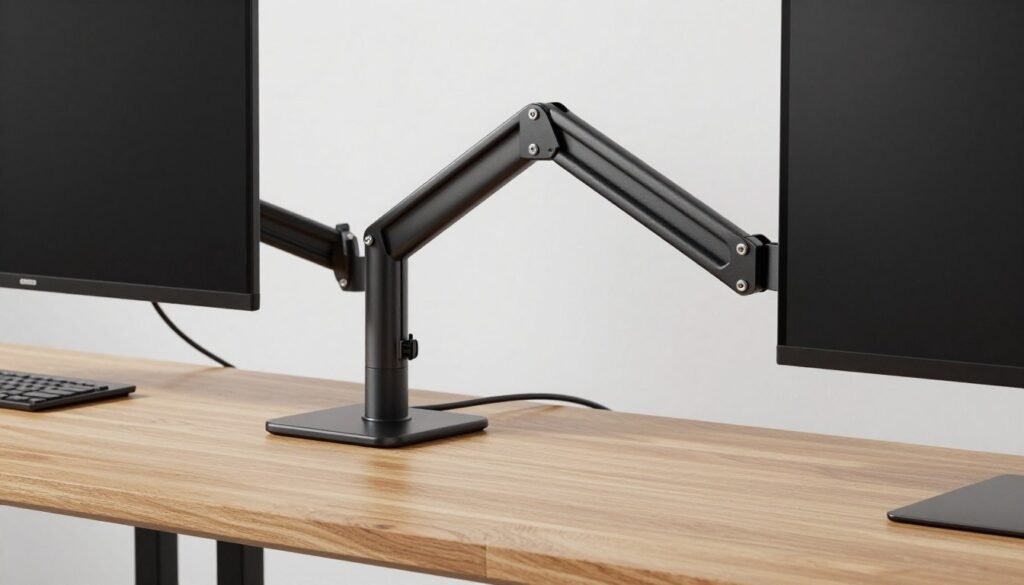
Ergonomic arms provide the most flexibility for your office. These arms allow for precise adjustments so you can move your monitors side-to-side or change the height instantly. Using independent arms is a great choice if you share your desk with others.
Monitor Stands and Risers
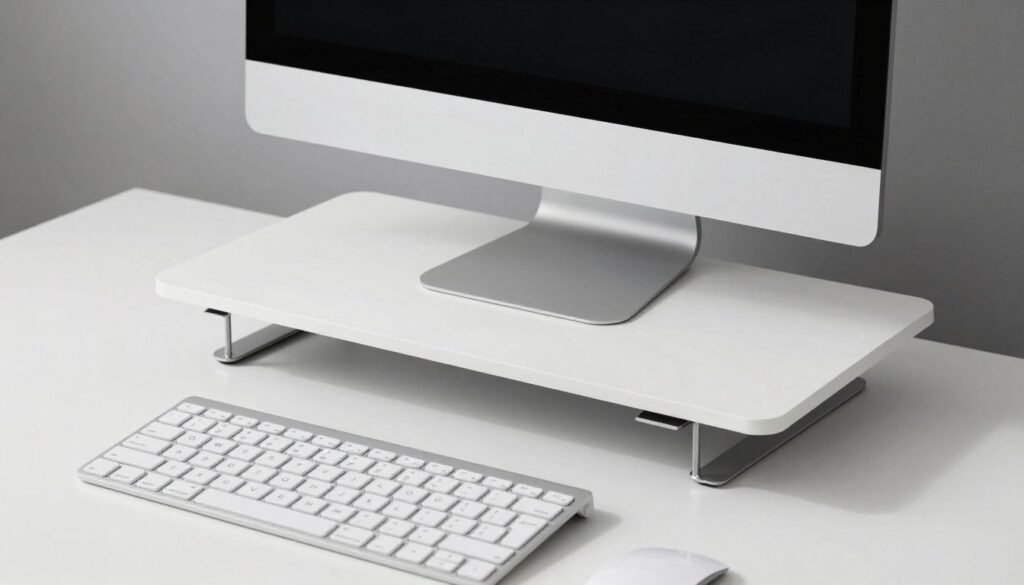
Simple height adjustments do not always require complex gear. Traditional monitor stands or risers elevate monitors on minimalist platforms. This is a very clean way to lift your monitor while keeping your desk looking tidy and organized.
Laptop Stands for Proper Elevation
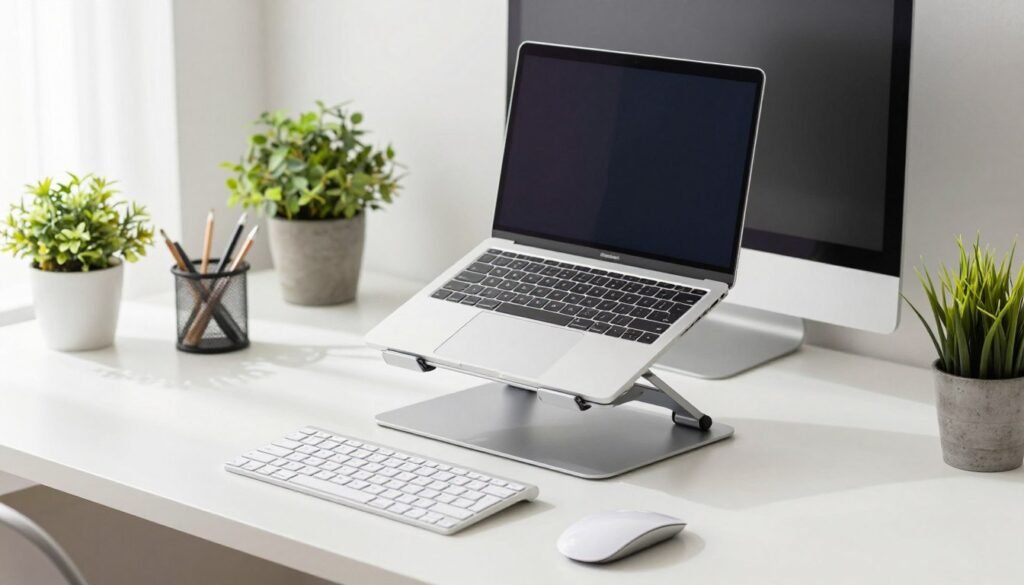
Working on a laptop often leads to neck pain because the built-in screen sits far too low. Using a laptop stand elevates the screen to your eye level, which is a major win for your workspace.
- Laptop stands are essential ergonomic tools because they fix the basic problem of screens sitting at chest level.
- They lift the screen to your eyes, but you must pair them with an external keyboard and mouse to keep your hands comfortable.
- You can choose from fixed-angle stands, adjustable styles with many positions, or small folding stands for travel.
- Investing in a stand and a wireless keyboard costs much less than treating chronic neck pain later.
- Advanced models even feature built-in cooling fans or mesh designs to keep your device from overheating during long sessions.
Monitor Height Guidelines by Screen Size and Panel Type
Screen dimensions and panel technology play a huge role in how you should position your display. Every monitor behaves differently depending on its glass and physical dimensions. Finding the right height involves balancing clarity with physical comfort.
Height Recommendations for 24-27 Inch Monitors
For standard setups, a 24-inch screen works best at a distance of 50 to 70 cm. If you use a 27-inch size, you should sit slightly further back, around 60 to 80 cm. This ensures you can see the entire display without moving your head too much.
Positioning 32-Inch and Larger Screens
Large monitors require even more room to prevent eye strain. You should position these screens further away and slightly lower than smaller models. This adjustment helps keep your viewing experience comfortable since the top of the display is physically much higher.
How IPS, VA, TN, and OLED Panels Affect Viewing Angles
Different panel types offer varied viewing clarity. IPS panels provide a wide 178-degrees angle, while OLED goes up to 180 degrees. In contrast, TN panels have a narrow angle of 45 to 65 degrees, making precise alignment essential.
Optimal Tilt Angles for Different Panel Technologies
A slight tilt helps align the screen with your natural gaze. Most monitors benefit from a 10 to 20-degree upward tilt. However, your panel type determines how much you can adjust while maintaining image quality.
- IPS Panels: These can accommodate a wider tilt range of 10-25 degrees without color shifting.
- VA Panels: Work best with a moderate 10-20 degree angle to avoid contrast shifts.
- TN Panels: Require precise alignment between 10-15 degrees because of narrow vertical viewing ranges.
- OLED Panels: Offer the most flexibility, allowing for a 10-30 degree angle without losing clarity.
The goal is to align your screen perpendicular to your gaze while respecting panel limits. IPS and OLED panels offer great freedom for those who move around frequently. Meanwhile, VA and TN users must stay centered to prevent image degradation or grayscale inversion.
| Monitor Size | Optimal Distance | Panel Type | Viewing Angle Performance |
|---|---|---|---|
| 24-Inch | 50-70 cm | TN | Narrow (45-65 Degrees) |
| 27-Inch | 60-80 cm | VA | Moderate (160-178 Degrees) |
| 32-Inch+ | 80+ cm | IPS | Excellent (178 Degrees) |
| Any Size | Varies | OLED | Perfect (~180 Degrees) |
Special Setups: Dual Monitors, Laptops, and Standing Desks
Many people use unique workstation configurations that require specific adjustments for comfort. Whether you use multiple monitors or a mobile computer, small tweaks make a big difference. Your workspace should adapt to your tools and your vision needs to prevent fatigue.
Setting Up Dual Monitor Heights Correctly
When you use two monitors, keeping them at the same height is vital for balance. If one is your primary focus, place that monitor directly in front of your eyes.
If you use both monitors equally, angle them like an open book where the edges meet in the center. This reduces the amount of neck rotation needed to switch between tasks.
Laptop Ergonomics: External Keyboard Solution
Laptops often cause people to slouch because the screen is too low. To fix this, use a dedicated stand to bring the monitor up to eye level.
Always pair this with an external keyboard and mouse. This keeps your wrists in a neutral and healthy posture while you work.
Adjusting Monitor Height for Standing Desks
Transitioning with height adjustable standing desks requires you to check your setup throughout the day. As you move from a chair to a standing position, ensure the monitor remains aligned with your gaze.
This careful monitoring prevents you from leaning forward at your desk. Proper alignment at a standing desk protects your lower back from unnecessary strain.
Monitor Positioning for Bifocal and Progressive Lens Wearers
Bifocal lens wearers face unique challenges because their reading zone is located in the lower part of the lens. To solve this, lower the height of the computer so you do not have to tilt your head back to see.
Increase the screen tilt to about 25 or 30 degrees to improve your line of sight to the monitor. This setup keeps your eyes relaxed while you work. Try to keep the display center at eye level or slightly below to stay comfortable in your workspace.
Experiment with the height and eye angle to find what works best for your specific lenses. You might also ask your doctor about computer-specific glasses for a wider and clearer field of view.
Health Benefits of Correct Monitor Height
When you fix your screen level, you unlock a cascade of physical and mental health benefits. Setting the right monitor height prevents both lower and upper back pain by maintaining proper spinal alignment. When your head stays balanced, your spine keeps its natural curves without stress.
This setup stops muscles from making compensatory shifts that cause discomfort. Proper ergonomics ensures your neck remains in a neutral position throughout the day. This eliminates the constant strain required to support a tilted or leaning head position.
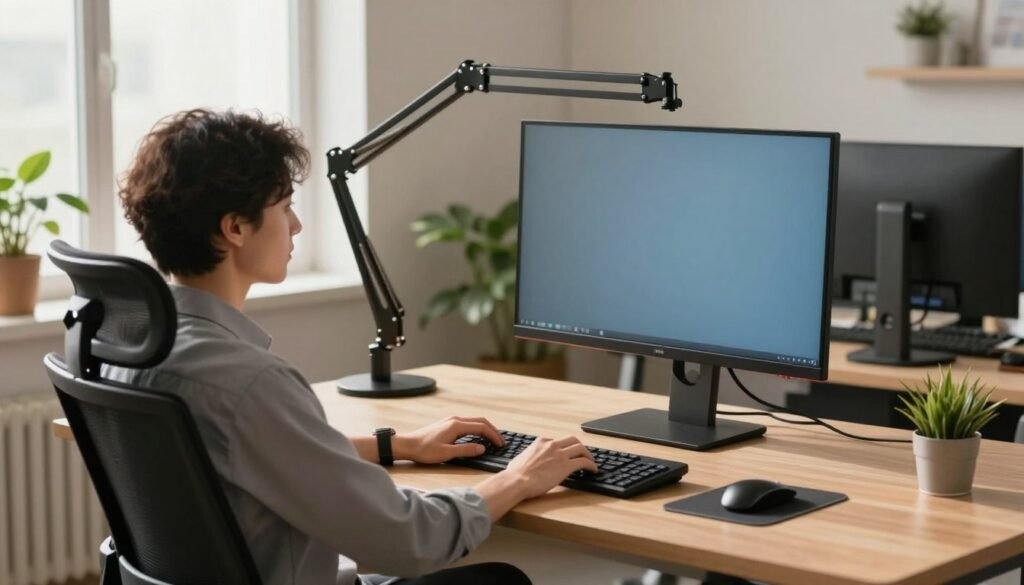
Adjusting your screen also protects your long-term vision. Reduced eye strain happens because your eyes rest in a natural downward gaze. This requires less muscular effort to focus, which lowers the risk of tension headaches. It also minimizes eye strain so you can stay focused longer.
Good ergonomics improves your overall posture throughout the work day. When the monitor height is correct, your shoulders naturally draw back instead of rounding forward. Your whole body maintains better alignment with much less conscious effort.
- Boosts productivity and mental focus by removing physical distractions.
- Lowers the risk of developing chronic musculoskeletal disorders.
- Reduces general physical strain and daily fatigue.
- Supports better vision health and reduces the need for squinting.
- Improves mood and job satisfaction by increasing physical comfort.
Using the right monitor height is an essential part of office ergonomics. It helps you maintain a healthy posture while protecting your neck from repetitive injury. These benefits compound over time, helping you avoid the cumulative damage of poor posture.
Warning Signs Your Monitor Height Needs Immediate Adjustment
Recognizing the red flags of an improper ergonomic setup can save you from chronic pain. Use this quick self-assessment to see if your current setup is actively causing harm. Persistent neck stiffness that develops during work and lingers after you finish is a clear warning sign.
This usually means your screen is forcing your cervical spine into a compromised position throughout the day. It is essential to treat these physical signals as urgent alerts rather than minor annoyances. Immediate correction is necessary to prevent long-term spinal issues.
Frequent headaches that appear during hours of time are another indicator. Specifically, tension headaches behind the eyes or at the base of the head signal that eye and neck strain has become a source of visual strain. If your eyes feel dry, irritated, or burning as the hours pass, your eye position is likely unnatural.
Holding your eyes in these fixed positions reduces your blinking frequency and increases tear evaporation. You might also notice tension building across your shoulders. This happens when muscles work overtime to support your upper body while you struggle to focus.
If you find yourself gradually slouching or hunching forward, your body is struggling to adapt to a poor monitor position. Any regular discomfort means you should prioritize adjustments immediately. Don’t wait for a chronic injury to develop before you fix your neck and eye alignment.
- Persistent Stiffness: Feeling restricted movement in your cervical spine after a shift.
- Tension Headaches: Pain starting at the skull base and moving toward the forehead.
- Visual Fatigue: Irritated or burning sensations that worsen as the afternoon progresses.
- Postural Collapse: Unconsciously leaning toward the display to see clearly.
| Symptom | Potential Impact | Recommended Action |
|---|---|---|
| Headaches | Visual and nerve fatigue | Adjust screen tilt angle |
| Burning Eyes | High tear evaporation | Lower the monitor height |
| Shoulder Tension | Muscle overcompensation | Check the viewing distance |
| Habitual Slouching | Spinal misalignment | Use a stable monitor riser |
Conclusion
Investing a few minutes into your monitor height setup pays off in long-term comfort and health. Positioning your screen so the top is at or slightly below eye level is a vital ergonomics win. This simple change at your workspace protects your posture from unnecessary strain.
Keep your ideal monitor at an arm’s length distance for the best viewing experience. While professional tools like monitor arms or stands help, even simple office hacks provide relief. These small adjustments ensure your computer time remains productive rather than painful.
Whether you use a standing desk or a dual monitor level, the goal is comfort. Your body deserves a healthy workspace every day you work. An ideal monitor height helps you stay focused throughout the day at your computer.
Finalize your office ergonomics by checking your viewing level frequently. Adjusting your monitor height today creates a sustainable environment for years to come. Don’t wait for pain to take action on your screen layout.