
Welcome to this journey of building a better workspace that supports your physical health. Whether you are at home or in a busy professional center, the way you sit during the day matters deeply.
You deserve to finish your tasks with plenty of energy instead of feeling sore or tired. Understanding your physical surroundings can make a significant difference in your long-term wellness and comfort.
A healthy arrangement keeps your body in a neutral position to prevent injury. This means your neck stays straight, and your spine does not twist while you move through your daily routine.
Using smart habits reduces the physical stress of long hours at a desk. When your hands and wrists stay level, you prevent strain before it even starts.
We will explore how tiny tweaks to your chair or monitor improve your posture immediately. These practical steps help you stay sharp and focused during all your work hours.
Let’s start making your daily routine more comfortable and enjoyable today. Everyone can follow these instructions regardless of their current budget or equipment.
Why Ergonomics Matter for Your Workspace
Learning why ergonomics matter helps you see how your body feels after hours of sitting at your desk. Often, we focus on finishing a work task rather than how we sit. However, a poor office setup creates physical costs that build up over time.
Your workspace should fit you, not the other way around. Proper alignment ensures you stay healthy and focused throughout the day. Understanding these principles helps you avoid long-term discomfort and injury.
The Impact of Poor Ergonomics on Your Body
Bad desk habits often cause cumulative stress injuries that hurt your joints and blood flow. A low screen forces a constant neck tilt, while an unsupportive chair creates strain in your lower back. These small issues might seem minor now, but they lead to chronic pain later.
When your setup is wrong, your shoulders often hunch forward or rise toward your ears. This tension moves through your whole body and can cause headaches or nerve compression. You may feel tired more quickly because your muscles are working too hard to keep you upright.
Key Benefits of an Ergonomic Workstation
Investing in your setup leads to better posture that supports the natural curves of your back. Proper monitor height prevents neck pain, and the right keyboard placement protects your wrists. These changes reduce the strain on your shoulders and keep you feeling energized.
Strong ergonomics also boost your productivity by removing physical distractions. You can focus on your projects instead of shifting around to find a comfortable spot. Better circulation and reduced eye fatigue are additional perks of a smart layout.
| Body Focus | Risk of Poor Setup | Benefit of Good Setup |
|---|---|---|
| Spine Health | Chronic back pain | Ideal posture support |
| Eye Comfort | Frequent headaches | Reduced visual fatigue |
| Blood Flow | Numbness in limbs | Improved circulation |
A smart setup protects your health for the years to come. Small adjustments today prevent major medical issues tomorrow. You deserve a workspace that helps you thrive without physical stress.
Complete Ergonomic Office Setup Guide: Step-by-Step Process
Transforming your workstation into a powerhouse of productivity begins with a solid foundation. You need a clear roadmap to ensure every adjustment works in harmony with your physical needs. This process helps you create a setup that supports your health all day long.
Understanding Neutral Body Position
The foundation of any effective ergonomic office setup is knowing what a “neutral body position” looks like. This state means your body aligns naturally without any parts being twisted or bent awkwardly. It is the ultimate goal you are working toward when you arrange your workspace.
In this state, your neck stays straight and relaxed while your spine maintains its natural S-curve. Your arms should rest comfortably at your sides with your elbows bent at about 90 degrees. Finally, your wrists must remain flat and aligned with your forearms to prevent unnecessary strain.
The Five Main Office Tasks and Their Requirements
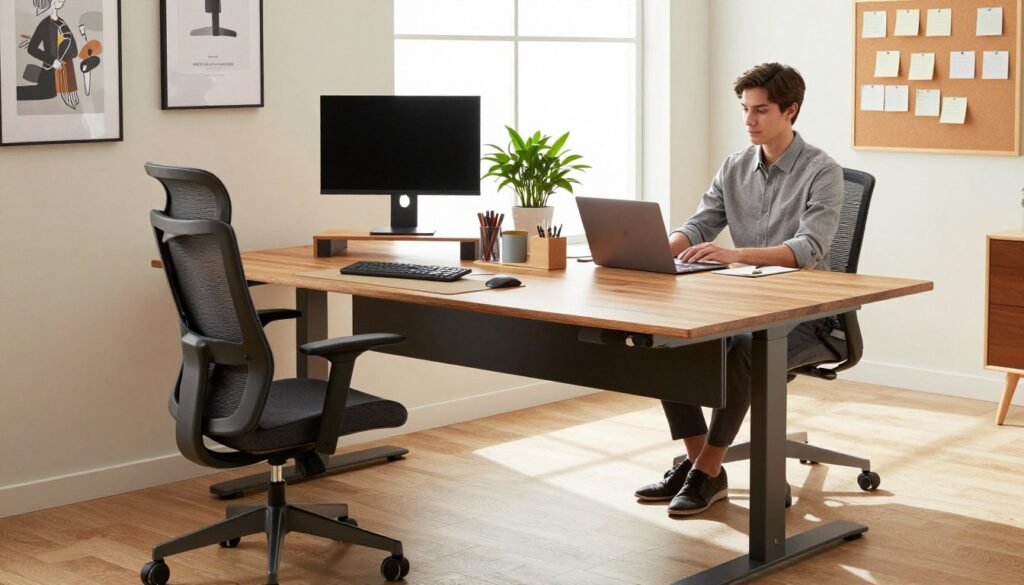
Achieving a healthy position requires coordinating several elements together. Most people perform five main tasks: typing on the keyboard, using the mouse, viewing the screen, reading documents, and writing by hand. Each of these activities has slightly different ergonomic requirements for your comfort.
Cornell University’s Ergonomics Web points out a common challenge for office workers. It is actually impossible to set a desk at the optimal height for all five tasks at the same time. High-quality adjustable furniture provides value by letting you customize your setup throughout the day.
Quick Reference: Ideal Ergonomic Setup at a Glance
Before you dive into specific details, use this quick reference guide to visualize your goals. Understanding these fundamentals makes the detailed adjustments in the following sections much easier to implement. Check the placement of your chair, monitor, and keyboard to find a better position.
| Component | Key Adjustment | Primary Benefit |
|---|---|---|
| Chair | Feet flat, knees at 90° | Relieves lower back pressure |
| Monitor | Top of display at eye level | Reduces eye fatigue |
| Desk | Forearms parallel to floor | Supports natural hand alignment |
Remember, these settings serve as your roadmap for the entire setup process. You now have the big picture before we dive into the specifics of adjusting each individual component. Taking these steps ensures you stay comfortable and focused during long work hours.
Setting Up Your Chair for Maximum Support and Comfort
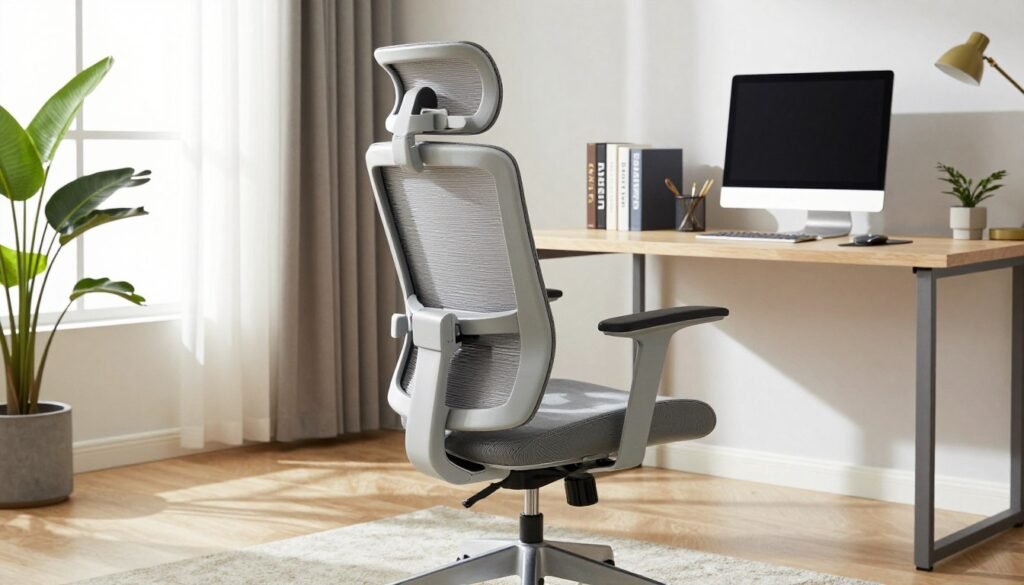
Since your chair supports your body for hours every day, taking a moment to fine-tune its settings will transform your comfort. This piece of furniture is arguably the most important element of your ergonomic office setup. Proper adjustments to the chair make an enormous difference in how you feel by the end of a long workday.
Adjusting Seat Height for Proper Leg Position
Start by adjusting your seat height so your body remains in a neutral, relaxed state. When you sit with your back pressed against the backrest, your feet should rest feet flat floor. This specific height ensures your knees bend at approximately 90 degrees.
Proper seat height helps promote good circulation and reduces pressure behind your knees. You should position your hips slightly higher than your knees to keep blood flowing well. If your desk is too high, use a footrest to keep your feet flat while maintaining the right seat level.
Configuring Lumbar Support and Backrest
The backrest and lumbar settings should cushion the natural S-curve of your spine. This is especially important for the lower back, which often lacks help in basic chair designs. Without proper support, you might experience slouching or chronic pain over time.
A well-set backrest encourages you to maintain a healthy posture throughout the entire afternoon. It prevents you from leaning forward or sitting at the very edge of your chair. Always ensure the curve of the support aligns perfectly with the small of your back.
Positioning Armrests to Reduce Shoulder Strain
Position your arm rests so they gently catch your forearms while you type. This adjustment allows your shoulders relaxed and dropped naturally toward the floor. You want to avoid having your shoulders hunched up toward your ears while you work.
Keep your elbows bent at about 90 degrees and tucked close to your body. If the arm rests push your shoulders relaxed state out of alignment, lower them or remove them entirely. This small change prevents unnecessary tension in your neck and upper body.
Best Office Chairs for Ergonomic Support
The Steelcase Gesture is a fantastic example of a high-end chair because it fits many body sizes. It features a supremely comfortable cushion and highly adjustable lumbar support. This chair mimics the natural movement of your spine as you reach or lean.
You do not have to pay full price for top-tier office furniture to get great support. Check local office-liquidation stores or Habitat for Humanity’s ReStores for huge discounts on professional gear. Finding a quality used chair can provide elite comfort even if you are on a tight budget.
Using Lumbar Pillows and Seat Cushions
If a new chair isn’t in your budget, a lumbar-support pillow can work wonders. These accessories fill the gap between your spine and the backrest. They help transform even a basic wooden chair into a comfortable workstation for a few hours.
A quality seat cushion adds much-needed padding and encourages better sitting habits. These tools make it easier to sit with your feet flat floor instead of perching on the edge of the seat. It is a simple way to improve your daily comfort without a major investment.
Choosing and Adjusting Your Desk Height
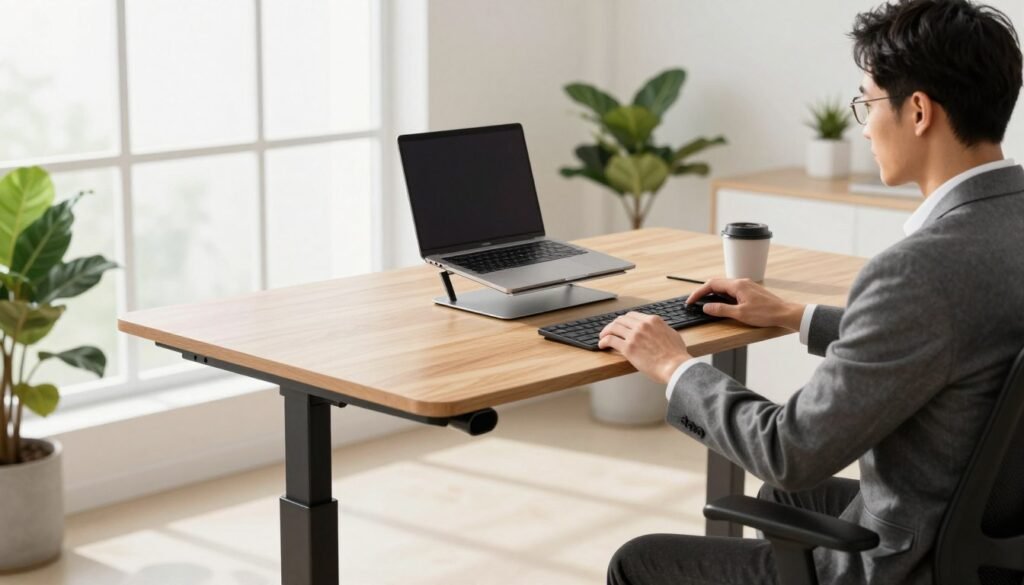
Achieving the right desk elevation is a crucial step in creating a workspace that supports your physical well-being. A surface that sits too high or too low can lead to chronic discomfort in your neck and back. Finding a balance ensures you stay productive without sacrificing your health.
Your work surface serves as the foundation for your entire ergonomic setup. If the height is incorrect, every other adjustment you make will struggle to compensate. Let’s look at how to find your perfect fit.
Ideal Desk Height for Different Body Types
Standard furniture units typically measure between 28 and 30 inches tall. This height works well for people who are 5-foot-10 or taller. However, most adults find these fixed surfaces are a bit too high for comfort.
When you are typing, your forearms should remain parallel floor to avoid unnecessary strain. If the surface is too high, you might unconsciously hunch your shoulders. This position can lead to tension headaches and upper back pain over time.
For shorter individuals, a fixed desk can be a real challenge. You want to ensure your elbows stay at a ninety-degree angle. Keeping your typing surface parallel floor is the best way to protect your long-term joint health.
Benefits of Adjustable Standing Desks
An adjustable height standing desk is often the gold standard for modern ergonomics. These units allow you to fine-tune the surface in half-inch increments to match your body perfectly. You can easily transition between sitting standing modes throughout your work shift.
Using a standing setup helps you avoid the pitfalls of a sedentary lifestyle. It allows for more natural movement while you handle your daily tasks. Strong motors in these desks make the transition smooth and quiet.
These desks are particularly helpful if multiple people use the same space. Each person can save their preferred height settings with a simple touch of a button. This flexibility makes it much easier to maintain a parallel floor arm position regardless of your stature.
Using Keyboard Trays and Footrests
If you cannot replace your current desk, a keyboard tray is an excellent alternative. It allows your wrists to stay in a neutral position by lowering the typing surface. This adjustment is much easier on your arm than reaching up to a high tabletop.
Another option is to raise your chair to align with the tabletop. If you do this, your feet might no longer reach the floor comfortably. In this case, you must use a footrest to keep your legs supported.
A footrest prevents your legs from dangling, which can restrict blood flow. This simple tool helps maintain a healthy posture even with non-adjustable furniture. Using a footrest is a cost-effective way to fix a standing or sitting setup that feels slightly off.
Alternating Between Sitting and Standing
Moving between sitting standing positions throughout the day keeps your muscles active. This habit increases blood flow and helps you stay focused on your goals. Frequent movement is the secret to staying energized during long sessions.
When you use sitting standing intervals, you reduce the physical fatigue caused by static postures. Make sure there is enough room under the desk for your legs. You need strong clearance so you can shift positions without hitting the underside of the frame.
Experts suggest changing your standing position every thirty to sixty minutes. This rhythm prevents any single muscle group from becoming overworked. It also ensures you are using your keyboard and mouse at the most comfortable angles possible.
Positioning Your Monitor to Prevent Neck and Eye Strain
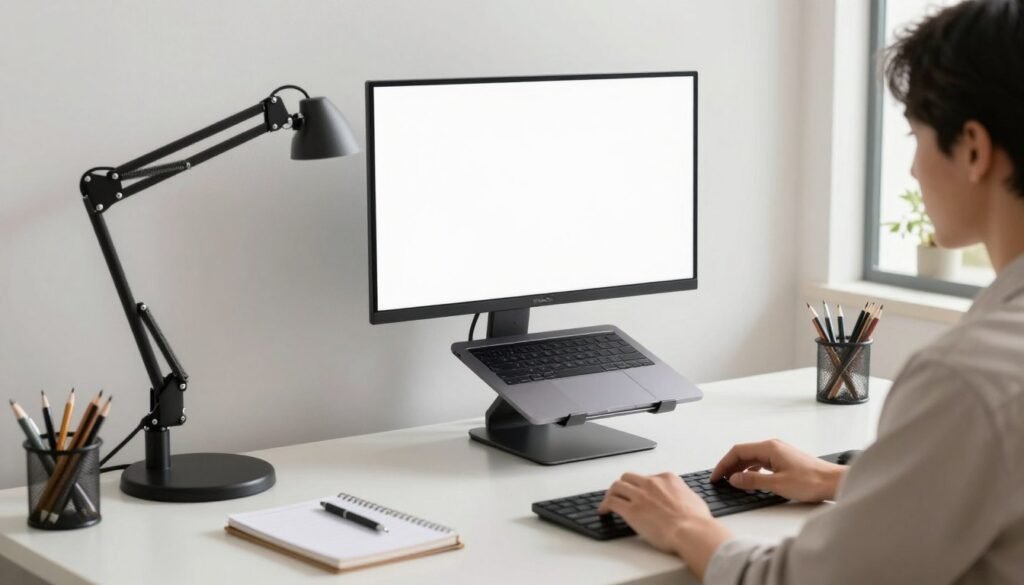
Fine-tuning your viewing setup is a simple step that offers massive health rewards. Many workers miss this part of their workspace, but it heavily impacts how your body feels after eight hours. Properly placing your display helps you stay comfortable and sharp all day long.
Correct Monitor Height and Distance
The top of your monitor should sit at or slightly below your eye level. This position allows you to see the center of the screen with a relaxed, neutral neck. Keep the display about an arm length away to prevent leaning forward or squinting.
If you can touch the glass with your fingertips, you have found the perfect length. This distance ensures you can read clearly without causing unnecessary eye strain. It keeps your posture upright and your focus steady.
Screen Angle and Tilt for Comfortable Viewing
Finding the right angle is just as important as setting the viewing height. Experts suggest a slight upward tilt of about 10 to 20 degrees so the display faces your natural gaze. This adjustment aligns the surface with your line of sight to reduce muscle strain.
A tilted screen helps you maintain a healthy posture throughout your entire workday. It prevents you from tucking your chin or craning your head forward. Small changes here make a big difference in how your shoulders feel by five o’clock.
Monitor Arms and Laptop Stands
Working on a laptop often leads to a hunched posture because the display is too low. You will likely need a sturdy laptop stand, like the Rain Design iLevel 2, to raise it up. For desktop users, a monitor arm like the Herman Miller Jarvis Single Monitor Arm offers great flexibility.
These tools allow you to adjust the level and angle while saving valuable space on your desk. They provide a much more stable and professional solution than a stack of books. Raising your equipment to the proper eye level is the best way to stop chronic pain.
Multi-Monitor Setup Best Practices
If you use more than one monitor, place your primary screen directly in front of you. Angle any secondary displays toward you to limit how much you turn your head. This layout keeps everything within your field of vision and prevents repetitive eye strain.
Check that every monitor stays at the correct eye level and arm length for consistency. Keep all your displays at the same level to make moving your eyes between them easy. This creates a seamless workflow that protects your body from fatigue.
Optimizing Keyboard and Mouse Placement
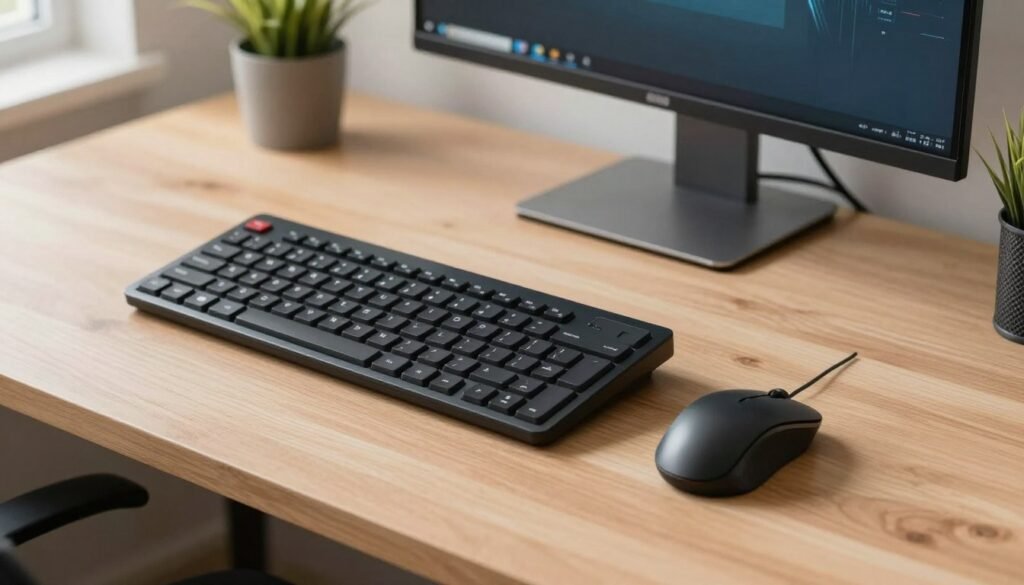
Finding the perfect spot for your typing and clicking tools is a game-changer for long-term comfort. Your keyboard mouse configuration directly impacts how your body feels after a long day of work.
Improper placement can lead to significant strain in your wrists and back. By adjusting these tools, you create a workspace that supports your natural alignment and boosts your efficiency.
Achieving Neutral Wrist Position While Typing
To stay comfortable, your wrists must remain straight and level with your forearms. They should not bend upward, downward, or to the sides while you work at your desk.
Always place your keyboard directly in front of you. Keep it close enough so your elbows stay tucked at your sides instead of reaching forward.
Many people use the small feet at the back of the device to tilt it up. However, experts advise against this.
“If there are feet to pop up near the edge of your computer, do not use them,” says Peter Keir, professor of kinesiology at McMaster University. These feet actually force your joints to extend, which increases physical stress.
Ergonomic Keyboard Options
A standard keyboard mouse setup often forces your hands to turn inward. This layout can cause you to hunch over and lose your neutral position.
Choosing the right hardware can solve this problem instantly. Ergonomic designs are built to keep your hands and fingers in a more relaxed state.
Split Keyboards for Shoulder-Width Positioning
The Kinesis Freestyle Edge RGB is a fully split keyboard that offers incredible flexibility. You can move each half apart to match the width of your shoulders.
This separation allows your chest to stay open and your upper body to remain relaxed. It eliminates the “scrunching” feeling often caused by traditional boards.
Tenkeyless Keyboards to Keep Mouse Closer
Standard boards with number pads can be quite wide. This forces you to reach your arm far to the side to use your mouse.
A tenkeyless keyboard mouse setup, like the Varmilo VA87M, removes that extra bulk. This keeps all your tools within a tight, comfortable range to prevent shoulder fatigue.
Choosing and Positioning an Ergonomic Mouse
Your mouse should always be at the same height as your typing surface. Reaching too high or too low can lead to recurring pain in your fingers.
The Logitech M720 Triathlon is a fantastic choice for many users. It features a comfortable shape that fits various hand sizes and grip styles perfectly.
Make sure you move the mouse with your whole arm rather than just flicking your wrist. This distributes the effort and protects your smaller joints.
Vertical Mice and Trackball Alternatives
If a standard mouse causes discomfort on your desk, consider a vertical design. These devices use a “handshake” grip that keeps your forearm in a natural, neutral state.
A trackball mouse is another great alternative to explore. It stays in one place, allowing you to move the cursor with your thumb and reducing arm movement.
Some professionals even prefer a stylus and tablet to vary their movements. Choosing the right tool depends on your specific comfort needs and the type of work you do.
Enhancing Your Setup with Lighting and Accessories
Beyond the basics of seating and height, your choice of tools creates a truly supportive environment. These elements often determine how well you feel at the end of a long day. A well-designed workspace relies on these finishing touches to maximize your daily comfort.
Proper Lighting to Reduce Eye Strain
Ergonomics experts suggest that good lighting prevents you from craning your neck at awkward angles. An abundance of natural illumination in your space boosts your energy and well-being. Looking at outdoor views gives your eyes a chance to recover from focusing on a screen all day.
Daylight helps your body stay in a healthy rhythm throughout the afternoon. If your home lacks large windows, you can still create a bright environment with the right bulbs. Proper brightness ensures you do not have to lean forward to see your tasks clearly.
Balancing Natural and Artificial Light
If your home office lacks windows, you should combine overhead light with specific lamps. This balance helps you focus during late hours or on cloudy days. Natural light supports your circadian rhythm and keeps you alert while you work.
Try to position your desk so that windows are to your side rather than directly in front or behind you. This placement prevents shadows from falling across your documents. It also ensures that the light does not hit your eyes directly.
Task Lighting and Desk Lamp Placement
Place a lamp to illuminate your surface without creating a glare on your screen. This specific lighting helps you see documents clearly and reduce strain on your vision. Adjustable arms on lamps allow you to direct the light exactly where you need it most.
Avoid placing a bright light source directly behind your monitor. This creates a high contrast that can make your eyes feel tired quickly. Soft, diffused lighting is always the best choice for a professional office.
Essential Ergonomic Accessories
Small accessories can solve specific comfort problems in your home office. These tools work with your chair and furniture to create a complete setup. Proper organization keeps your most-used items within easy reach to prevent reaching.
Adding items that help you relax can actually improve your physical health. When you feel calm, your muscles are less likely to become tight or painful. Personalizing your area with meaningful objects makes the day much more enjoyable.
Anti-Fatigue Mats for Standing Desk Users
If you have a standing workstation, a high-quality mat is a vital addition. These mats provide cushioning and encourage small movements in your feet and legs. This extra support makes it much easier to work while on your feet for long periods.
Standing on a hard floor can lead to back pain and leg fatigue. A good mat absorbs the pressure and protects your joints from strain. It is a simple upgrade that makes a massive difference in your productivity.
Document Holders and Desk Organization
A document holder keeps papers at the same height as your monitor. This prevents neck issues caused by looking down repeatedly at your desk. Good office organization reduces the need for repetitive twisting or stretching.
Keep your space clear of clutter to maintain a focused and calm mind. Use drawers or trays to store items you do not use every hour. An organized desk allows you to move freely without bumping into obstacles.
Preventing Eye Strain with the 20-20-20 Rule
The 20-20-20 rule is a simple way to reduce strain during your day. Every 20 minutes, look at an object 20 feet away for at least 20 seconds. This practice gives your eye muscles a necessary break from constant close-up focus.
Some people also find success with the 30-30-1 method. This involves looking at a distant object for one full minute every half hour. Both methods are great ways to refresh your vision and stay focused at home.
Incorporating Movement and Breaks Throughout Your Day
Movement is just as important as having a great chair. Staying in one position for too long causes stiffness, even in an ergonomic home office. Aim for micro-breaks every 30 minutes to keep your body feeling fresh and energized.
Short bursts of activity help blood flow to your muscles and brain. You will likely find that you can think more clearly after a quick walk. Strong habits like these protect your long-term health and comfort.
Micro-Breaks and Stretches You Can Do at Your Desk
Use short breaks to stand, walk a few steps, or perform simple stretches. Personalizing your office with plants or photos can also help you relax. Lowering your stress levels prevents muscles from tightening up while you are busy.
Try rolling your shoulders or stretching your wrists every few hours. These micro-movements keep your joints loose and prevent tension from building up. Even a few seconds of stretching can reset your posture and improve your mood.
Common Ergonomic Mistakes to Avoid
Many office workers unknowingly sabotage their health by making simple, avoidable mistakes in their desk setup. Even with the best intentions, it is easy to fall into old habits that undermine your hard work. Recognizing these common errors helps you make quick adjustments to protect your body.
Incorrect Wrist Angles and Keyboard Placement Errors
One of the most frequent mistakes involves typing with your wrists bent upward or outward. This awkward position places heavy strain on your tendons and nerves over time. Many people also make the mistake of resting their palms on hard desk surfaces while they type.
Your keyboard should never sit too high or flat on a thick desk surface. If you have to reach too far forward, your elbows leave your sides and your shoulders begin to tense up. Instead, keep the keyboard directly in front of you so your arms remain relaxed and level with the floor.

Monitor Position Mistakes That Cause Neck Pain
A monitor that sits too low is a primary cause of neck and upper back pain. This low placement encourages a forward head posture, which adds significant weight and pressure to your spine. You might also find yourself squinting or leaning forward if the screen is placed too far away.
Glare from nearby windows or overhead lights is another overlooked issue. When light hits your screen at a bad angle, you naturally shift your body into a poor position to see clearly. Adjusting your monitor height and tilt can prevent this constant physical strain throughout the day.
Ignoring Discomfort and Early Warning Signs
Perhaps the biggest mistake of all is ignoring the small signals your body sends you. Physical discomfort is often the first sign of a problem, and you should never try to “push through” the pain. Tension in your neck or tingling in your fingers are clear signs that your posture needs a check.
Small aches in your lower back might seem minor at first, but they can lead to long-term injuries. Treat any persistent discomfort as valuable feedback to reassess your workspace. Catching these issues early is the best way to stay healthy and productive in the long run.
| Ergonomic Mistake | Physical Impact | Corrective Action |
|---|---|---|
| Bending wrists upward | Tendon strain and carpal tunnel risk | Keep wrists level with forearms |
| Monitor placed too low | Neck pain and slouching | Raise screen to eye level |
| Reaching for the keyboard | Shoulder and back tension | Pull the device closer to your body |
| Ignoring a dull lower back ache | Repetitive strain injuries | Adjust chair height and position |
Conclusion
Achieving the perfect balance in your workspace requires patience and regular adjustments. Creating an ergonomic office setup is not a one-time task you finish and forget. Instead, it is an ongoing process of listening to your body and fine-tuning your environment.
You should actively experiment with your daily environment to find what works best. Try raising or lowering your monitor and adjust your chair height to find the sweet spot. Pay attention to how your body feels after making each small change to your equipment.
The goal is to reach that “Goldilocks” level where everything feels “just right.” Your setup should support a neutral posture without causing any strain or fatigue. Maintaining a healthy posture while you work is a vital investment in your long-term health.
If you use a standing desk, alternate your position frequently throughout the afternoon. A supportive chair and proper desk height are essential for a productive home office. Even small changes can make a significant difference in your daily comfort.
Use this guide to adjust your chair and create a space that keeps you healthy for years to come. Trust your own experience as you build a workspace that truly supports your needs. Your physical health and productivity will certainly thank you for the effort.